Bring your data across from Salon Tracker
Import your Salon Tracker clients, minutes, packages, sales and bookings in about five minutes.
Who can do this: Owners and managers
On this page
Moving from Salon Tracker takes about five minutes. Your backup is read on your salon PC and never uploaded anywhere.
1. Make a backup in Salon Tracker
Make a backup in Salon Tracker as you normally would. It makes a file called something like Data(Backup)(20-Nov-26 19-21)(1.1.0).zip. Put it somewhere easy to find, such as the desktop or a USB stick.
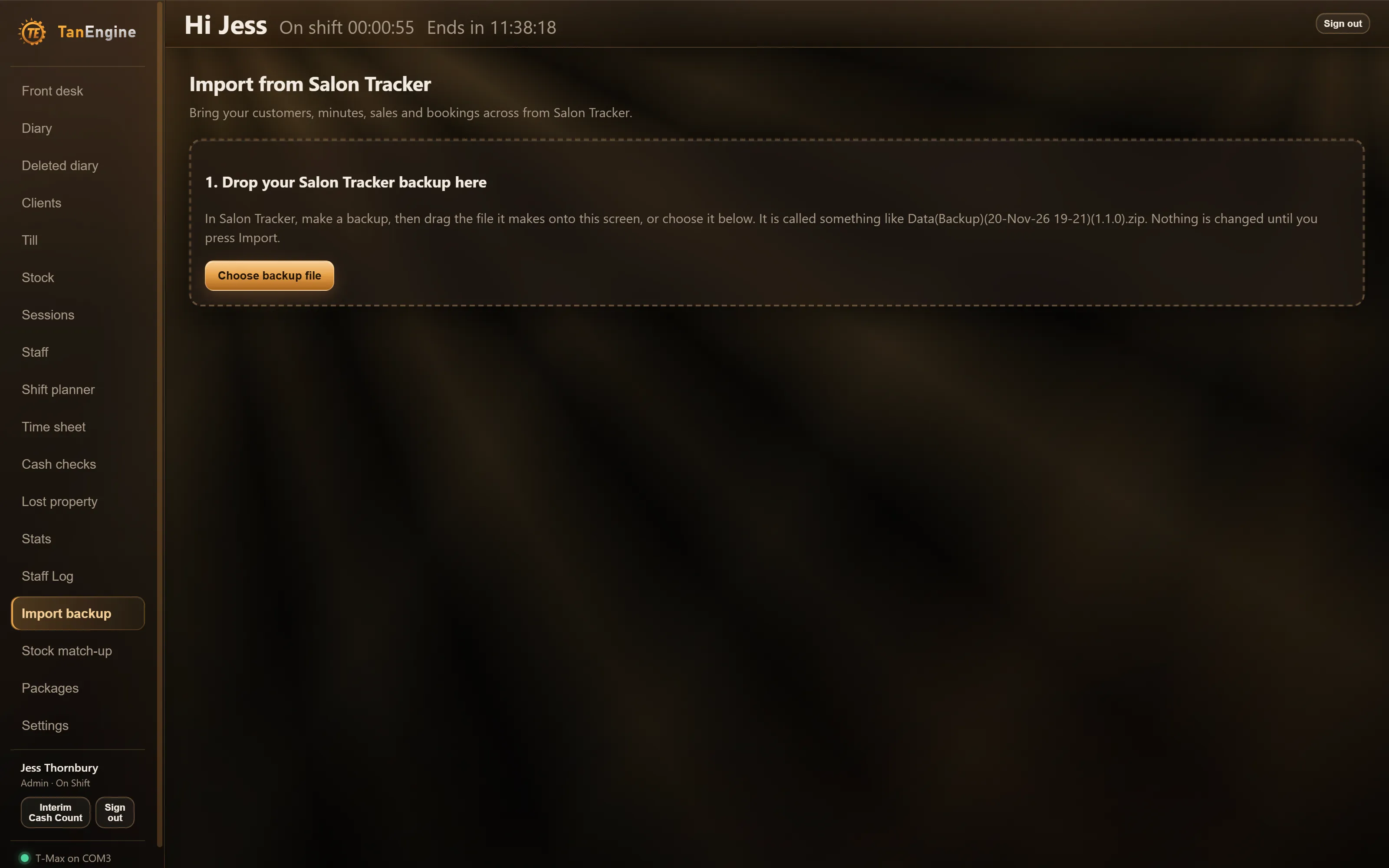
2. Drop it into TanEngine
- In TanEngine, open Import backup from the menu on the left.
- Drag the backup file onto the screen, or click Choose backup file and pick it.
You’ll see “Backup read”, with how many customers, packages, products, sales and bookings it holds.
3. Match your beds
Under 2. Beds, choose one of these:
- Match each room to your bed: for each Salon Tracker room, pick the TanEngine bed it is now, or Leave this room out. Sessions and bookings in rooms you leave out aren’t imported.
- Import beds from Salon Tracker: replaces TanEngine’s beds with one per Salon Tracker room, so every past session stays on the bed it was really on. Check each bed’s T-Max address before importing. This option isn’t available once your TanEngine beds have sessions or bookings.
4. Tick what to bring across
| Choice | Starts | Notes |
|---|---|---|
| Customers | Always | Deleted customers come across archived. |
| Minute balances | Ticked | Minutes customers have already paid for. Leave this ticked. |
| Packages and prices | Ticked | Courses and minute bundles, with prices and expiry. |
| Sales history | Ticked | Past receipts, for reports and history. |
| Bookings and sessions | Ticked | Past sessions and future bookings, on the beds you chose. |
| Retail stock | Not ticked | Adds your products as extras. Usually best set up by hand. |
5. Check, then import
- Click Check. TanEngine runs the whole import as a trial and shows exactly what it will do, including Balances match when the unspent minutes add up.
- Read the list of anything to check by hand afterwards.
- Click Import and confirm.
TanEngine backs itself up first. When it finishes, you’ll see Import finished, with Go to Clients and Check beds in Settings.
Tip: If you change any choice after pressing Check, press Check again. Import only becomes available after a check with the same choices.
Import again, or undo it
- Importing a newer backup later only adds what’s new.
- If something went wrong, click Remove imported data under Already imported. It takes the imported customers back out, with their sales, bookings and minutes. Your beds, packages, products and your own customers stay.
Bring across your retail prices
To copy your Salon Tracker shelf prices onto TanEngine’s products, use Stock match-up.
Screenshots show a demo salon. All client names and details are fictional.